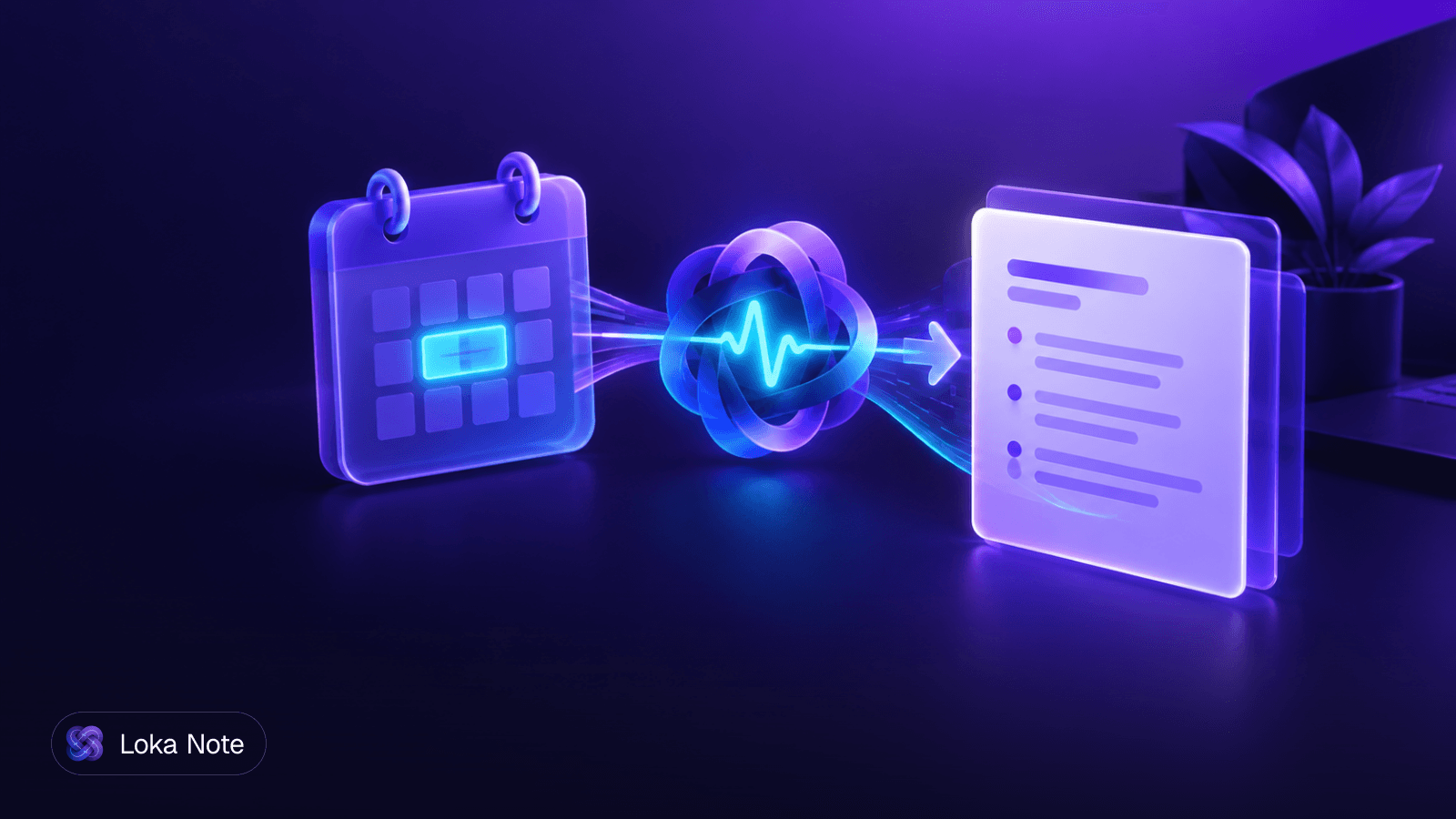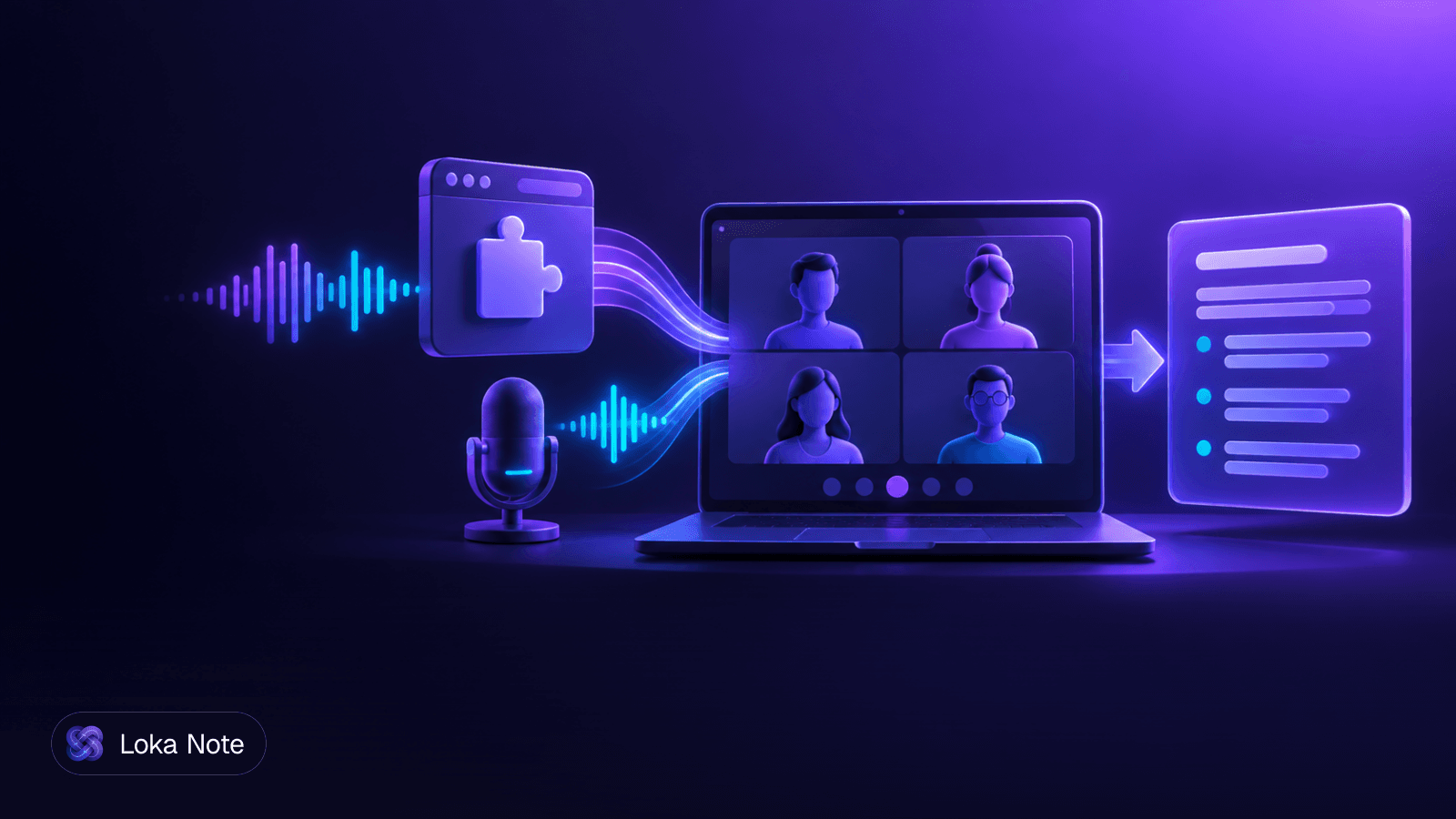
A browser extension meeting recorder captures the audio your browser is already playing, mixes in your microphone, and turns it into a recording or transcript, all without adding a bot to the call. Because nothing joins the meeting, the other participants see no extra name in the list. The trade-offs are about where the audio goes afterwards, which platforms work, and how well the transcription handles your languages.
This guide explains the mechanics, then walks through the questions that matter on locked-down laptops and in multilingual teams.
How a browser extension meeting recorder works
An extension uses Chrome's tabCapture API and Web Audio API to grab the call tab's audio stream and mix it with your microphone, all on your own machine. MeetingsAI describes this as the reason the call platform never registers a bot or triggers a platform-level recording notice.
Three pieces do the work.
Tab audio
The browser already decodes everyone else's voices to play them through your speakers. tabCapture lets an extension tap that stream for one specific tab. It captures what the tab plays, not what the rest of your computer plays.
Your microphone
Your own voice does not come back through the tab, so the extension opens your microphone separately. Web Audio then mixes the two streams into one track. That is why the answer to "does it capture both me and them" is yes, as long as your microphone is working.
Playback to your speakers
Capturing a tab's audio can silence it for the user. Extensions in this category route the captured audio back to your speakers so you hear the call normally while the raw digital feed is recorded.
Limits to test before you trust it
Capture is tied to a tab and to an action you take in the browser. We have no vendor data on how each tool behaves when you switch tabs, close the call tab, or mute your hardware input. Test those cases yourself with a five-minute call before the first important meeting. Check that both sides of the conversation are in the file, and check the end of the recording as well as the start.
Extension vs notetaker bot vs desktop client
An extension records from inside your own browser, a bot joins the call as a participant, and a desktop client runs as an installed app. Each fits a different situation.
| Browser extension | Notetaker bot | Desktop client | |
|---|---|---|---|
| Appears in participant list | No | Yes, as a named guest | No |
| Needs host or admin approval to enter | No | Often | No |
| Install needed | Extension only | None for you | Executable installer |
| Works on locked-down laptops | Often, if extensions are allowed | Not affected, but may be blocked from the room | Often blocked |
| Captures calls outside the browser | No | Depends on the tool | Yes |
Can other participants see you recording?
The vendors we reviewed say no platform notification fires, because the platform is not involved. That is a technical fact, not a green light. Silent recording can break your company's policy and, depending on where participants are, the law. Tell people at the start of the call. It takes ten seconds and avoids the awkward conversation later.
Why teams drop bots
Bots are visible, and some organizations block them. NowRecording notes that botless recording gets around admin policies, such as Microsoft's Teams policy that stops external guest notetaker bots from entering meetings. A recorder on your own device is not an outside guest, so that policy does not apply to it. That does not mean the meeting's organizer would be happy about it, so the consent point stands. For a longer look at the options, see our guide to meeting transcription without a bot.
Local-first vs cloud-processed: where the audio goes
Capture always happens locally. What differs is what happens next: some extensions keep everything on your device, and others upload the audio to a server for transcription.
Fully local
An extension built on Manifest V3 and the Web Audio API can write to the browser's Origin Private File System (OPFS). One open-source example, chrome-meeting-recording-extension, uses this to keep audio and video from leaving the machine during active capture. Note the phrase "during active capture". What you do with the file afterwards is a separate question.
Local transcription is also possible. NowRecording says on-device speech models like Whisper can run inside Chrome via WebAssembly without a GPU, producing live transcripts without sending raw audio to external cloud servers. The cost is speed and accuracy on modest hardware, which varies by laptop and by language.
Hybrid: local capture, cloud transcription
Many extensions capture locally and then upload the audio to a server for transcription and summarization. That is not necessarily bad. Server-side models are usually stronger than what runs in a browser tab. But "no bot" does not mean "audio stays with you", and marketing pages often blur the two.
Ask these before recording anything confidential:
- Is transcription done on the device or on a server?
- If on a server, which sub-processors or third-party AI providers see the audio?
- How long is the recording kept, and can you delete it?
- Is your audio used to train models?
Our longer checklist, Are AI note takers safe?, covers the same questions in more detail.
Managed devices and locked-down laptops
Extensions often work where desktop apps cannot, because they do not need an installer. Wave notes that its in-browser recorder works on managed enterprise machines, Chromebooks, and borrowed laptops where administrative restrictions block standalone applications.
"Often" is the right word, though. Administrators can also restrict extensions through browser policy, allowing only an approved list. If your install button is greyed out, that is a policy decision, not a bug.
A practical path on a managed laptop:
- Check whether you can install extensions at all from the Chrome Web Store.
- If not, ask IT to review the specific extension, and bring its privacy terms and retention policy with you.
- If the answer is no, use a recording method that does not involve the laptop, or upload a recording made another way.
- Whatever you choose, do not route confidential audio through a personal device without permission.
Workarounds that skip your company's rules are the fastest way to turn a productivity tool into a disciplinary issue.
Which platforms a browser extension can record
An extension can record any call that plays its audio in a browser tab, which includes Google Meet, Teams on the web, and the Zoom web client. It cannot record a call running in a separate desktop app, because that audio never passes through a tab.
Most competitor guides cover only Google Meet. The principle is broader. Tabs do not care which service produced the sound, so the same method can also cover webinars and web-based conferencing tools that have no integration with any notetaker. Platform quirks still apply: web clients can offer fewer features than desktop apps, and a company may force the desktop app for Teams or Zoom.
Before you commit, run this check for each platform you use:
- Does the call run in a browser tab at all, or does the platform push you to its desktop app?
- Does the recording include both your voice and the other participants?
- Does it keep recording if you move to another tab or window?
For Google Meet specifically, our guides to transcribing Google Meet without a bot and how to transcribe Google Meet cover the fallbacks when something fails.
The language barrier: accents, mixed speech and non-English limits
Capturing the audio is the easy part. Transcribing it well is where tools diverge, especially outside English.
Language lists can mislead. ScreenApp's Chrome extension offers live transcripts in over 100 languages, plus action items, decisions, and AI chat, with a free tier limited to two 45-minute transcriptions. That is a useful free trial. But a long language list tells you the tool accepts the language, not how accurate it is on a fast, accented, half-English meeting.
None of the sources we reviewed publish accuracy data for Burmese, Thai, Vietnamese, or Hausa, so we will not claim numbers. What we can say from experience is that mixed-language speech is the usual failure point. A meeting that switches between Burmese and English mid-sentence is a different problem from a clean single-language recording. We explain why in Why Burmese-English code-switching breaks transcription tools, and the broader picture is in our multilingual meeting transcription guide.
How to test a tool on your own language
- Record a real five-minute stretch of a normal meeting, not a clean script.
- Include names, numbers, and at least one switch between languages.
- Have a fluent speaker read the transcript and count the errors that change meaning.
- Check that the summary matches what was actually decided, not just the transcript.
If you are choosing an on-device model for privacy, run the same test on the laptop your team actually uses. Local models trade accuracy and speed for keeping audio on the machine.
Checklist: choosing an in-browser meeting recorder
Pick the recorder that fits your platform, your policy, and your languages, in that order.
- Platform fit. Does it capture the browser-based version of every tool you use?
- Both sides of the audio. Confirm your voice and the other participants are in the output.
- Behavior under stress. Test a tab switch, a muted microphone, and a call that runs over an hour.
- Data path. Know whether transcription is local or on a server, and who the sub-processors are.
- Retention and deletion. You should be able to delete a recording, and know how long it is kept otherwise.
- Admin compatibility. Confirm your IT team allows the extension.
- Language test. Try it on your own mixed-language audio before paying.
- Consent routine. Decide how you will tell participants, and do it every time.
- Pricing shape. Free tiers with a hard cap, subscriptions, and pay-per-minute suit different meeting volumes.
Where Loka Note fits
Loka Note records meetings directly in the browser, with no bot joining the call, and also accepts uploaded audio and video files. It then produces a transcript, a summary with decisions and action items, and lets you ask questions across past meetings with Ask Loka.
It is built Burmese-first, including mixed Burmese-English speech, and supports English, Thai, Vietnamese, Chinese (Simplified), Yoruba, and Hausa. It has Google Meet and Google Calendar integration.
To be clear about the data path from the section above: Loka Note is not a local-only recorder. Recordings are retained for six months and you can delete them at any time. Transcripts and summaries are encrypted at rest, and customer audio is never used to train AI models. The details are on our security page. Enterprise teams that need SSO, configurable retention, or a signed DPA can look at the enterprise terms.
There are no plan tiers. Every account has the full feature set, minute top-ups start at $1.99 for 60 minutes, and an optional Unlimited plan is $19.99 a month.
Try it on a real meeting: create a Loka Note account
Frequently asked questions
How do browser extension meeting recorders work without a bot joining the call?
They use Chrome's tabCapture and Web Audio APIs to take the audio from the call tab and mix it with your microphone on your own machine. The call platform never sees an extra participant, because nothing joins the meeting. The recording happens entirely in your browser.
Can other participants see if you are recording with a Chrome extension?
According to extension vendors, the platform does not register a bot or trigger its own recording notification, so participants will not see an indicator. That makes it your responsibility to tell people and get consent where required. Many teams simply announce it at the start of the call.
Do browser extension recorders capture both my microphone and computer audio?
Yes, that is the usual design. The extension captures the audio playing in the call tab and mixes it with your microphone input, while still playing the call through your speakers so you hear it normally.
Is it safe to use a browser extension to record confidential work meetings?
It depends on where the audio goes after capture. Some extensions keep data on your device, while others capture locally and then upload audio to a cloud service for transcription. Read the privacy and retention terms, and check with your IT or legal team before recording sensitive calls.
Will a Chrome extension meeting recorder work on managed work laptops and Chromebooks?
Often yes, because an extension does not need a desktop installer. Your IT policy may still block extension installs or limit which extensions are allowed, so confirm with your administrator before relying on one.
Sources
- 1kstroevsky/chrome-meeting-recording-extensiongithub.com
- 2Free AI Meeting Notes Chrome Extensionscreenapp.io
- 3Introducing the Wave Chrome Extension: Record Any Browser Audio | Wavewave.co
- 4Record Google Meet Without a Bot: Chrome Extension | MeetingsAI Blogmeetingsai.app
- 5Meeting Recorder Without a Bot (No Bot Joins Your Call)nowrecording.com