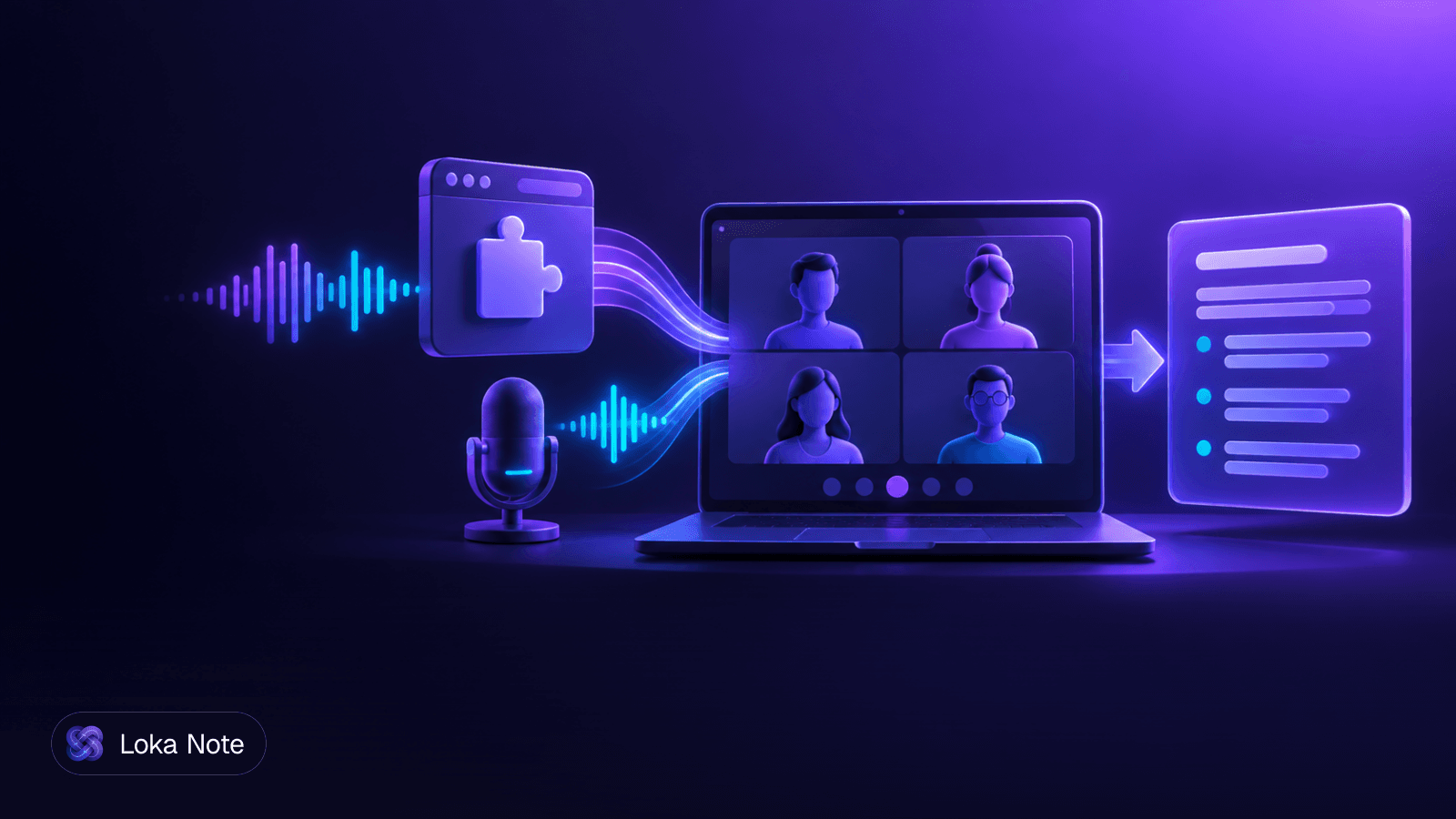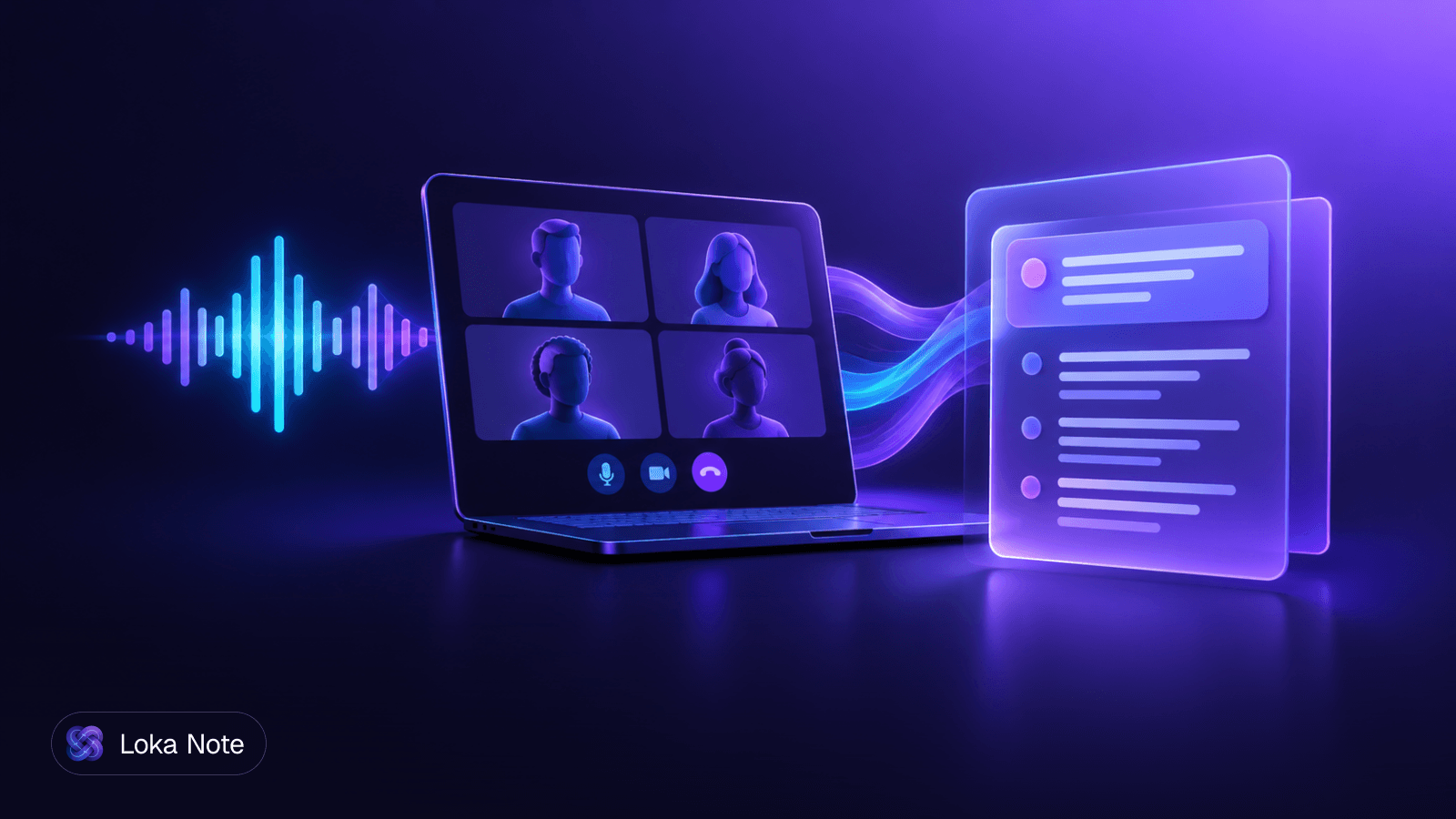
Yes, you can transcribe Google Meet without bot accounts joining the call. There are four ways: Google's built-in transcription, Chrome tab audio capture, desktop system audio capture, and recording the call first and uploading the file afterward. They differ in who can see that you are transcribing, what plan you need, and how well they handle meetings in more than one language.
This guide compares the four, explains the trade-offs, and covers consent, which does not go away when the bot does.
Why teams avoid AI meeting bots
Most teams drop bots for practical reasons: a named guest appears in the participant list, someone has to admit it, and external parties may object to an unfamiliar app in the room.
The usual objections are these:
- The bot is visible. A guest like "Notetaker" shows up on the roster. In a client call or a sensitive interview, that changes how people talk.
- Admission friction. The host must let it in, and it can fail to join if the meeting is locked down.
- Company policy. Some organizations restrict third-party apps and external accounts joining internal calls. Where that is the case, a bot is a non-starter.
- Plan limits. Native recording is not available to everyone, so people look for other routes.
Removing the bot does not make the call invisible to regulators, clients or colleagues. It changes the mechanism. We cover the consent side below, and our post Are AI note takers safe? lists the questions to ask any tool before it touches your recordings.
Four ways to transcribe Google Meet without bot participants
The four methods split into one built-in option and three that work from your own device or files. The table summarizes them.
| Method | Visible to attendees? | What you need | Main limit |
|---|---|---|---|
| Native Google Meet transcription | Yes, an in-call indicator | An eligible paid Workspace tier | Not available on free accounts |
| Chrome tab capture | Nothing joins the roster | Chrome and an extension | Chrome and web only; tied to that tab |
| Desktop system audio capture | Nothing joins the roster | A desktop app using OS audio capture | Install and permissions on your machine |
| Record, then upload | No live footprint | A recording and an upload tool | Notes arrive after the meeting, not during it |
The most common confusion is between the first method and the rest. Google's own feature is bot-free, but it is not silent. Tools that capture audio on your side leave no participant entry, though that does not remove your duty to tell people.
If you want a step-by-step walkthrough of the native route and its fallbacks, see How to Transcribe Google Meet.
Method 1: Google Meet's native transcription
Native transcription needs no bot and no video recording, but it announces itself to attendees and requires an eligible paid Workspace plan.
According to Nod, transcription and video recording are separate features in Google Meet. You can transcribe without turning on video recording. Attendees still see an in-call transcription indicator, so this is not a zero-footprint option.
Plan limits
RecordMeeting reports that free personal Gmail accounts and Google Workspace Business Starter plans cannot use native recording. If the record button is missing or greyed out, you will need one of the other methods below.
When native is the right choice
Use it when everyone is on your Workspace domain, the plan supports it, and nobody minds a visible indicator. It is the simplest path and needs nothing installed.
It is a weaker fit when you need a transcript from a free account, or when the meeting is in a language mix your plan's transcription does not handle well. Test it on a short call before relying on it for an important one.
Methods 2 and 3: Capture the audio on your own device
If you cannot use native transcription, you can capture the call audio locally and transcribe it separately. There are two technical routes: the browser tab, or the operating system.
Chrome tab capture
Tab capture is the lighter setup. A Chrome extension captures the audio of the Meet tab directly. MeetingsAI explains that these extensions use Chrome's built-in tabCapture API to take the tab's audio, mix it with your local microphone, and upload the result for transcription.
What that means in practice:
- Nothing joins the call. The extension works inside your browser.
- It is limited to Chrome and to web-based calls. It captures the tab, not your whole computer.
- Your audio is uploaded for transcription, so check where it goes and how long it is kept.
- Because the tab audio and your microphone are mixed, the transcriber receives one combined stream unless the tool keeps them separate.
To set it up:
- Install the extension in Chrome and grant the permissions it asks for.
- Join the Meet call in a normal Chrome tab.
- Start capture from the extension while that tab is active.
- Stop capture when the call ends and wait for the transcript.
- Spot-check the first few minutes, especially names and numbers.
Desktop system audio capture
Desktop apps work one level lower. According to a DEV Community guide, they capture meeting audio without joining the roster by hooking into OS-level audio frameworks: ScreenCaptureKit on macOS and WASAPI loopback on Windows.
The trade-off against tab capture:
- Wider reach. System capture is not tied to Chrome, so the same app can handle Meet in any browser and calls on other platforms.
- More setup. You install software on your machine, and the operating system may ask you to approve audio or screen permissions.
- Not tied to one tab. Because it records what your computer plays, other sounds can leak in. Mute notifications before a call.
Tab capture suits people who only use Chrome and want a quick start. System capture suits people who attend calls across several apps and want one tool for all of them.
Method 4: Record first, upload after
Recording and transcribing in two separate steps is the most conservative approach, and it works even on locked-down accounts.
File Transcribe describes this route: record the meeting using native tools or a separate device, or pull the file from Drive, then upload it to an audio-to-text converter. You get a full transcript and summary without any third-party app touching the live call.
This is the right choice when:
- Your organization's admin has blocked extensions and desktop installs.
- The meeting is sensitive and you want to decide afterward whether to process it at all.
- You already have a recording from a colleague or from an earlier call.
The cost is time. You do not get notes while the meeting is still running. If bandwidth is a problem, trimming a recording to audio before upload helps. Our post on transcribing video to text on slow connections covers this.
Check the recording's audio quality before you upload. A single laptop microphone picking up a room of people is the most common reason transcripts come back unusable.
Consent, privacy and legal limits
Going bot-free changes how audio is captured. It does not change whether participants need to know.
The DEV Community guide says plainly that recording or transcribing without an AI bot does not eliminate legal compliance or consent obligations. Participants must still be notified, especially in multi-jurisdiction or all-party consent situations.
A practical routine:
- Say at the start of the call that you are transcribing, and why.
- Ask anyone who objects to say so, and note the answer.
- Mention who will see the transcript and how long it is kept.
- For external or cross-border calls, confirm in writing beforehand.
- Delete recordings you no longer need.
Cross-border teams are the most exposed. A call between Yangon, Lagos and Singapore may involve three sets of rules, and the strictest participant is the one to plan around. We are not lawyers, and this is not legal advice. If the stakes are high, ask yours.
Also check the tool itself. Where is audio stored, who can read it, is it used to train models, and can you delete it? Those questions matter more once the bot is gone, because nothing visible on screen reminds people that capture is happening.
Multilingual teams and speaker labels
For mixed-language meetings, pick the method by how well the transcriber handles your languages, not by how the audio is captured. Capture only gets the sound; the model decides what was said.
Most bot-free guides are written for English-only calls. Teams that switch between English and Burmese, Thai or Vietnamese mid-sentence run into a different problem: a tool tuned for one language per meeting will garble the other. We explain why in Why Burmese-English code-switching breaks transcription tools. Test any tool on a real recording from your own team before committing.
Speaker labels depend on how the audio arrives:
- One mixed stream. When tab audio and your microphone are combined, as with the extensions described above, the transcriber has to tell speakers apart by voice alone. Similar voices or crosstalk can produce wrong labels.
- Separate channels. If a tool keeps your microphone apart from the call audio, at least your own lines can be labeled reliably. Others on the call still share one channel.
- Uploaded files. These come in as whatever was recorded, so the quality of the original recording sets the ceiling.
Whatever the method, add names to the notes yourself for important meetings. A quick pass of two minutes to fix speaker labels is cheaper than a mis-attributed decision.
Where Loka Note fits
Loka Note records meetings directly in the browser with no bot joining the call, and it also accepts uploaded audio and video files. Both routes produce a transcript, a summary with decisions and action items, and open questions. It connects to Google Meet and Google Calendar, including pre-meeting briefs.
It is built Burmese-first and handles mixed Burmese-English speech, along with English, Thai, Vietnamese, Chinese, Yoruba and Hausa. That is the gap most bot-free guides leave open for teams in Myanmar, Southeast Asia and Nigeria.
On cost, there are no feature tiers. Every account gets everything. Top-ups start at $1.99 for 60 minutes, and an optional Unlimited plan is $19.99 a month. Recordings are kept for 6 months and can be deleted at any time. Audio and transcripts are never used to train AI models; see our security page for the details. As above, you still need to tell participants you are recording.
Start with a short test on a real call from your own team: create a Loka Note account
Frequently asked questions
Can you transcribe a Google Meet without an AI bot joining as a participant?
Yes. You can use Google Meet's own transcription on an eligible paid Workspace plan, capture the audio from a Chrome tab, record system audio with a desktop app, or upload a recording afterward. None of these add a bot to the participant list.
Does Google Meet's native transcription require an extra bot to join?
No. Native transcription is a built-in feature and does not need a separate bot. It also does not require you to record video. It does show an in-call indicator to attendees, and it needs an eligible paid Workspace tier.
Can you capture tab audio in Google Chrome for transcription?
Yes. Chrome extensions can use the browser's tabCapture API to capture the audio of the Meet tab, mix it with your microphone, and send it for transcription. It works only in Chrome and only for the tab being captured.
Is it legal to transcribe a Google Meet call without a bot notifying attendees?
Removing the bot does not remove your consent obligations. Participants generally still need to be told, especially when attendees are in different jurisdictions or where all-party consent applies. Announce it at the start of the call and check your local rules.
What if the record button is missing or greyed out in Google Meet?
Free personal Gmail accounts and Workspace Business Starter plans cannot use native recording. In that case, use a Chrome tab capture extension, a desktop audio recorder, or a separate recording that you upload afterward.
Sources
- 1How to Transcribe a Google Meet Without a Bot (2026) | File Transcribefiletranscribe.com
- 2Google Meet Recording Without Bot: How to Capture Calls Invisiblyrecordmeeting.com
- 3Record Google Meet Without a Bot: Chrome Extension | MeetingsAI Blogmeetingsai.app
- 4Google Meet Transcription Without Recording or a Bot · Nodhellonod.app
- 5How to transcribe Zoom, Meet, and Teams without a bot in the participant list - DEV Communitydev.to