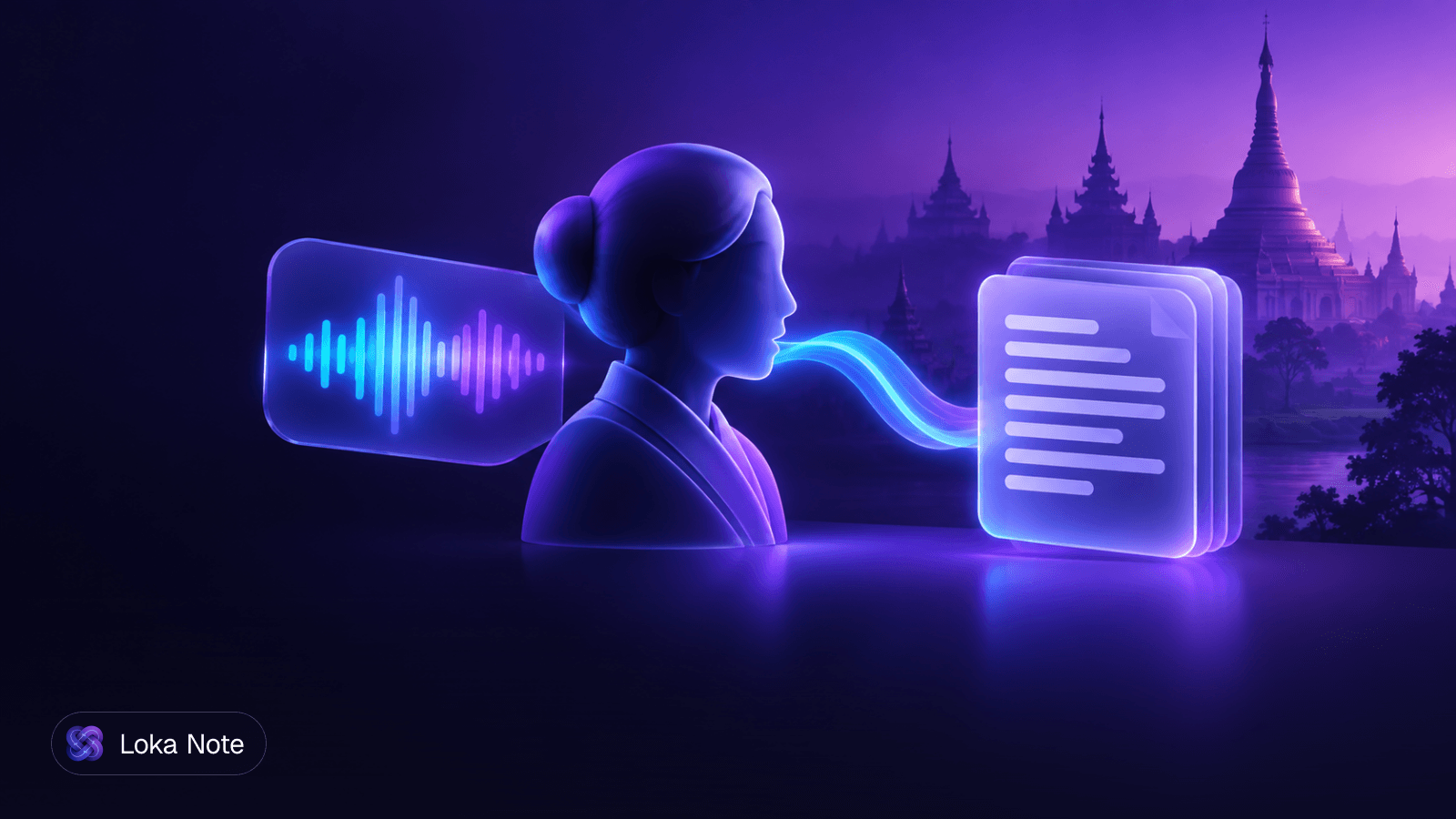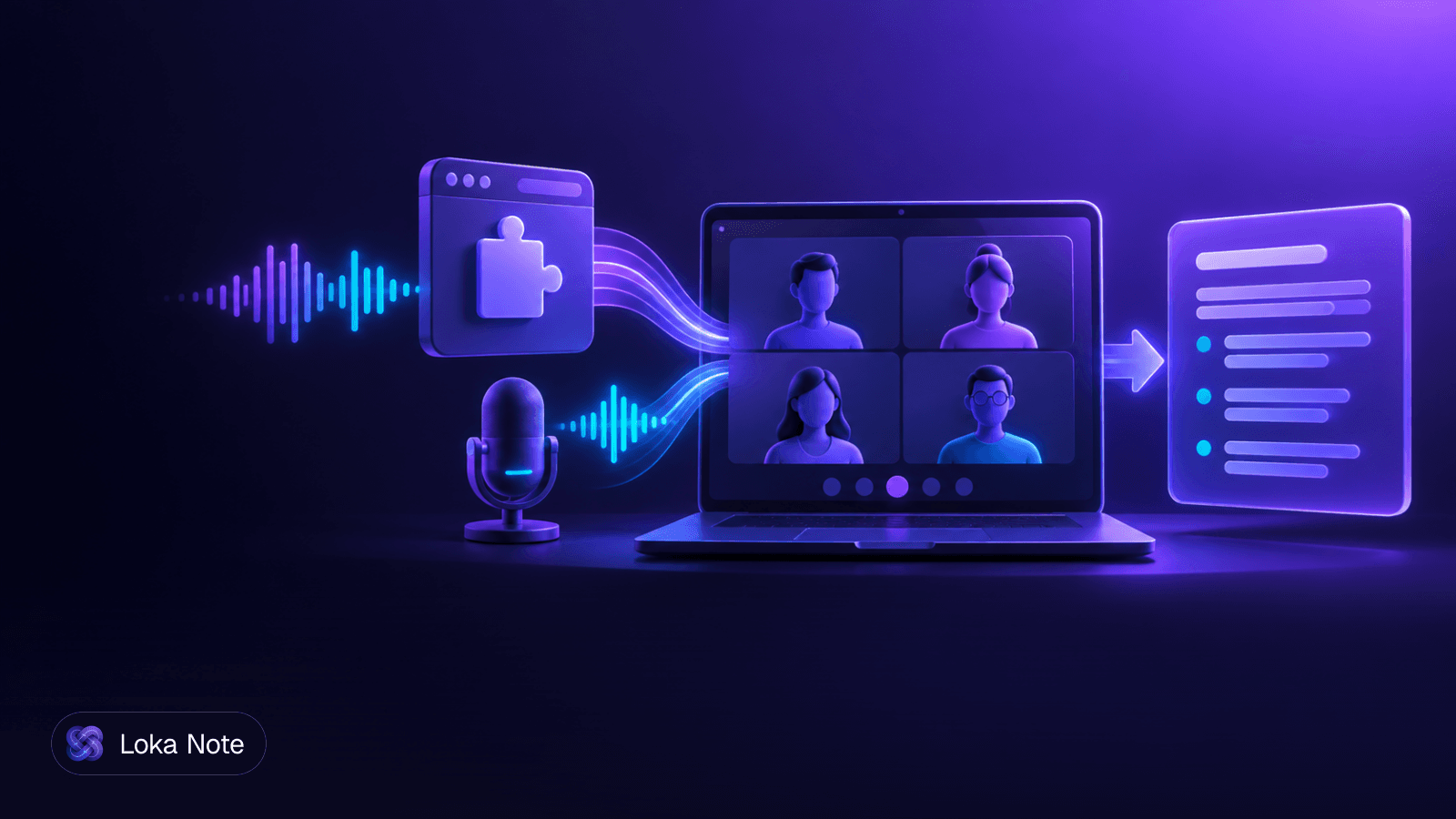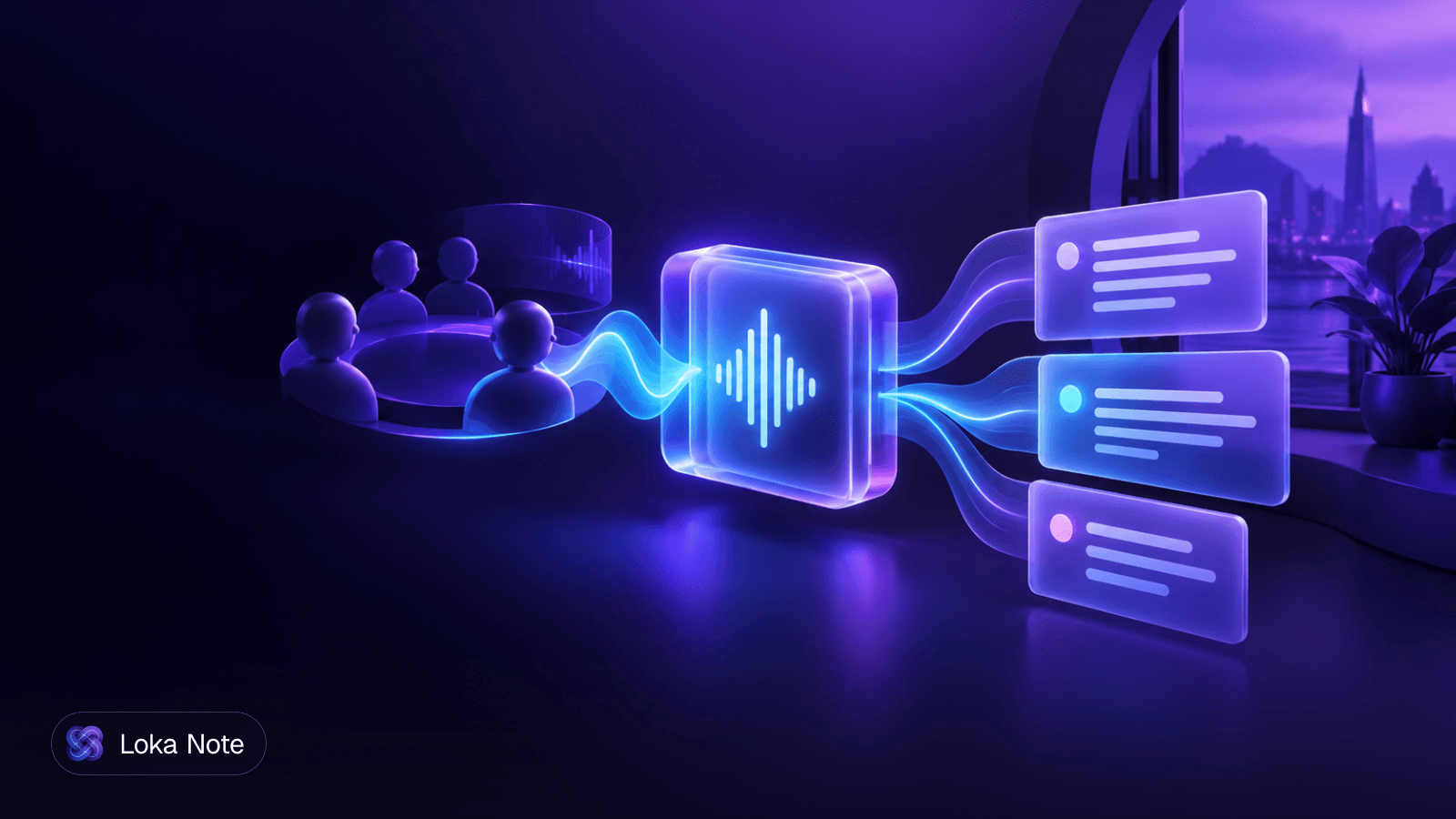
Meeting transcription without bot involvement works by capturing the call's audio or captions on your own device or browser, instead of sending a recorder into the meeting as a participant. No extra name appears in the participant list, and the host has nothing to admit. It does not remove your obligation to get consent, and it does not guarantee good accuracy in languages like Burmese.
This guide covers how the capture works on Mac and Windows, what each approach gets wrong, where the law still applies, and how to choose a tool if your meetings are not only in English.
Why teams avoid visible meeting bots
Most teams drop bots for social and security reasons, not technical ones. A bot is an extra participant that someone has to admit, and it announces to everyone on the call that a third-party service is recording.
In practice this causes three problems:
- Client calls feel stiff. A named recorder in the participant list changes how people speak, especially in negotiations or sensitive check-ins.
- Hosts and IT teams block them. Enterprise hosts often refuse unknown bots at the lobby, or ban them by policy. If you are a guest on someone else's call, you may not be able to bring one at all.
- Bots depend on the platform. They need to join through the meeting provider, so waiting rooms, locked meetings and admin settings can stop them.
If you are comparing bot-based tools with alternatives, our post on Fireflies AI alternatives without a bot lists what to check before you switch.
How meeting transcription without bot capture works
There are three ways to do it, and they behave differently. The right one depends on whether you need real speaker names, local privacy, or a tool that works on any device.
1. System audio capture
The app listens to what your computer is playing and what your microphone hears. It intercepts audio at the operating system level using APIs such as ScreenCaptureKit on macOS and WASAPI loopback on Windows, with no bot joining and no Zoom API permissions needed, according to a developer walkthrough on DEV Community.
Because it works at the OS level, it does not care whether the call is on Zoom, Meet, Teams or something else. It hears the audio either way.
2. Hybrid capture: local audio, cloud transcription
Many tools capture audio locally, then send it to a server for transcription. Granola, for example, captures microphone and system audio locally on Mac or Windows, transcribes via the cloud, deletes the raw audio once transcription is complete, and keeps only transcripts and your notes.
"Local" here describes the capture, not the processing. If data residency matters to you, ask where the audio goes and how long it stays there.
3. Browser capture and caption reading
Browser-based tools work from the meeting tab. Some read the platform's own interface, and can pull Zoom transcripts directly from the browser tab to get exact participant names rather than generic labels like "Speaker 1". Others record audio from the browser itself and transcribe it afterward.
Mac versus Windows
| macOS | Windows | |
|---|---|---|
| Capture API | ScreenCaptureKit | WASAPI loopback |
| Bot needed | No | No |
| Typical setup step | Grant screen capture permission | Select the right output device |
Both platforms depend on OS permissions and on your audio routing. We cover what breaks below.
Bot-free tools compared
Prices and capture methods vary a lot. The figures below come from CraftNote's 2026 roundup of AI meeting assistants unless stated, and they change, so check each vendor's pricing page.
| Tool | Starting price | Capture approach |
|---|---|---|
| Granola | $18/month | Local mic and system audio, cloud transcription |
| CraftNote | $9.99/month | Bot-free assistant |
| Krisp | $8/user/month | Device-level audio |
| Magnative | $15 one-time | Mac-native system audio recorder |
| Loka Note | Top-ups from $1.99, or $19.99/month unlimited | Browser recording or file upload |
The Loka Note row comes from our own pricing. We cover how it works in the last section.
Two things stand out. First, a one-time fee exists for people who only need a Mac recorder and do not need summaries or search. Second, subscription pricing is the norm, which matters if you take few meetings a month. Our post on AI meeting notes without a subscription goes through the options.
The trade-offs: speaker names, hardware and reliability
Bot-free capture is more convenient socially but less robust technically. A bot sits in the meeting and gets a clean feed per participant. Your laptop gets whatever your speakers and microphone get.
Speaker attribution
System audio is a single mixed stream. Unless the tool also reads the meeting interface, it has to guess who is talking from voice differences, and you often end up with "Speaker 1" and "Speaker 2". Tools that read names from the browser tab get around this on supported platforms, but they depend on the platform's page layout staying the same.
If real names in the transcript matter, such as for client records or action item owners, test this before you commit. Run a short call with a colleague and check the output.
Hardware and OS failure points
Device-based capture breaks in predictable ways. Flownote lists closed laptops, changed headphone routing, low battery and missing OS accessibility or screen capture permissions as the common causes.
A practical checklist before an important call:
- Plug in or confirm battery is above a safe level.
- Confirm the screen capture and microphone permissions are granted to the app.
- Pick your headphones or speakers first, then start recording. Do not swap devices mid-call.
- Keep the lid open, or confirm your tool keeps recording when it is closed.
- Record 30 seconds of test audio and check the transcript.
Muting and one-sided audio
If you mute your microphone, your own voice may not reach the recorder, depending on how the tool captures it. Other people's audio comes through the system stream. Check how your tool treats a muted mic, and do not assume your side of the conversation was captured.
Legal and compliance: invisible is not exempt
A recording that no one can see is still a recording. Bot-free capture does not bypass recording laws. US federal law follows one-party consent, but California (under CIPA), Florida, Pennsylvania, Washington and Illinois require all-party consent.
If participants are in different jurisdictions, the stricter rule is the safe one to follow. This is general information, not legal advice. For anything high stakes, ask a lawyer.
A few habits keep you safe:
- Say it out loud. Open with "I'm recording this for notes. Any objection?" It takes five seconds.
- Follow the host's policy. If an organization has banned bots, a quiet workaround may still break its rules on recording or on third-party data processing. Ask first.
- Know where the data goes. Cloud transcription means audio or text leaves your device. For cross-border work, check the vendor's security page and sub-processors.
- Delete what you do not need. Pick a tool that lets you delete meetings and set retention.
For Myanmar-specific rules about records, see our guide to Myanmar meeting minutes.
Multilingual and low-resource language challenges
Capture method and language support are separate questions, and most bot-free guides only answer the first. A tool can capture your audio perfectly and still produce an unusable transcript if it handles your language badly.
The hard cases are:
- Code-switching. A Burmese sentence with English business terms in the middle is normal speech in Yangon. Many tools pick one language per recording and fail on the rest. We explain why in Why Burmese-English code-switching breaks transcription tools.
- Language lists that look long but are shallow. A product that supports a hundred languages may not have tuned its model for any of the less common ones.
- Regional English. Nigerian English and Pidgin can trip up models trained mostly on North American speech.
Before you commit, test with a real recording from your own team, not a demo clip. Check names, numbers, and the sentences where the language switches. If you work in Burmese, our comparison of Granola alternatives for multilingual meetings shows what to test for.
How to choose the right no-bot note taker
Pick based on your constraints first and features second. Work through these steps:
- List your platforms. Zoom, Meet, Teams, or a mix. System audio capture is platform-agnostic, while browser tools may be tied to specific platforms.
- Decide how much speaker naming you need. If you need real names, test it on a live call.
- Check your languages. Run a recording with real code-switching and read the output closely.
- Check your IT rules. Ask whether installing a desktop recorder is allowed, and whether cloud transcription is acceptable.
- Work out your volume. A few meetings a month and a daily meeting load call for different pricing models.
- Confirm consent practice. Decide how you will tell participants, and write it into your meeting opener.
Where Loka Note fits
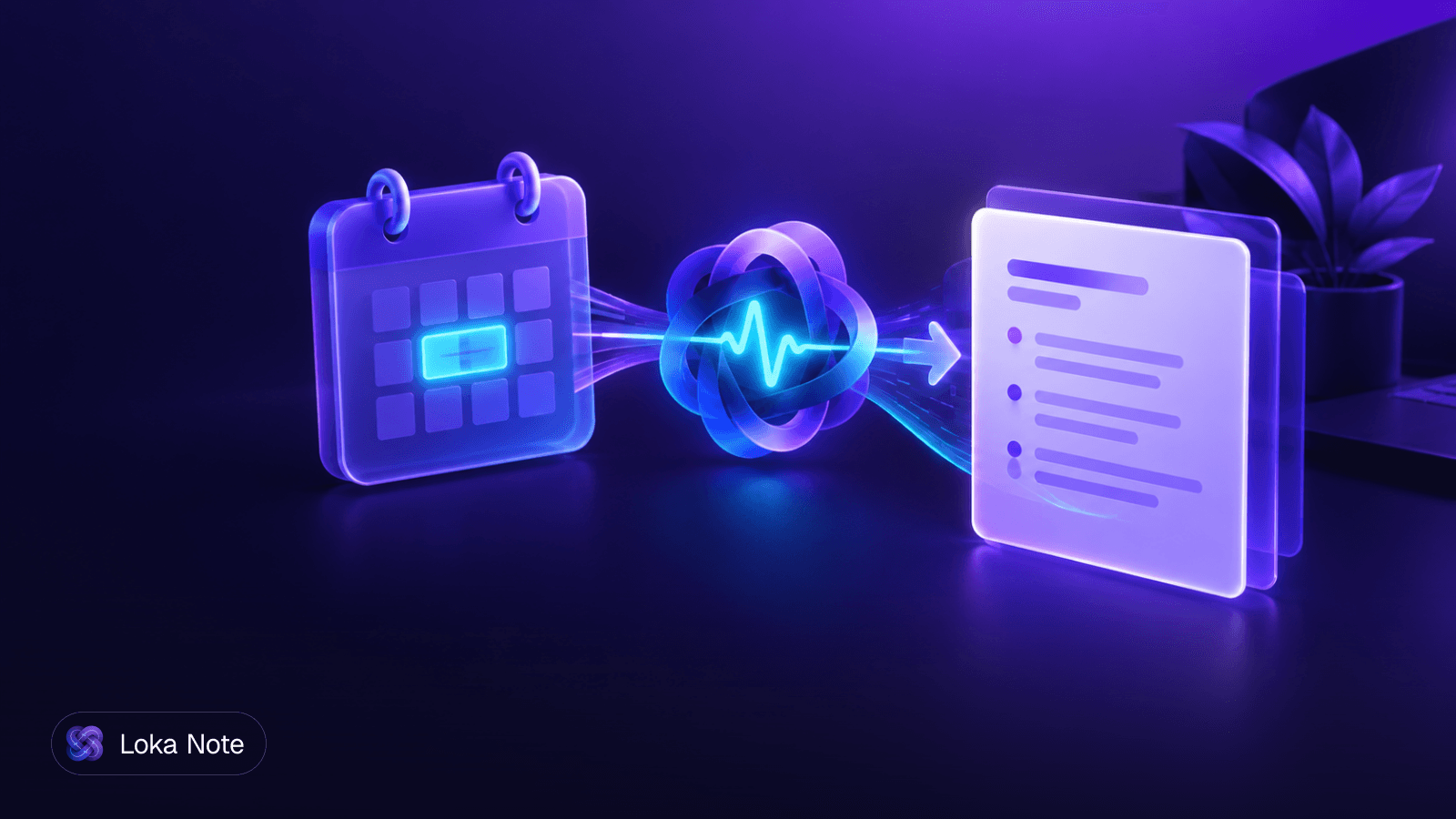
Loka Note records meetings directly in the browser with no bot joining the call, and it also accepts uploaded audio and video files. It produces a transcript, a summary with decisions and action items, and an "Ask Loka" search across your past meetings.
It is built Burmese-first and handles mixed Burmese-English speech in a single meeting. It also supports English, Thai, Vietnamese, Chinese, Yoruba and Hausa. It has Google Meet and Google Calendar integration, and recordings are kept for six months and can be deleted at any time.
Every account gets the full feature set. You pay with minute top-ups starting at $1.99 for 60 minutes, or $19.99 a month for unlimited use. Details on encryption and data use are on our security page.
Loka Note is not a system audio recorder, so if you need OS-level capture across every app, one of the tools above may suit that job better. If your meetings mix Burmese and English, or you work in Thai, Vietnamese, Yoruba or Hausa, it is worth testing on a real recording.
Frequently asked questions
Is it legal to transcribe a meeting without telling participants if no bot joins?
Not necessarily. Removing the bot does not remove consent rules. US federal law follows one-party consent, but states including California, Florida, Pennsylvania, Washington and Illinois require all parties to consent. Tell participants you are recording, whatever tool you use.
How does bot-free transcription capture audio on Mac and Windows?
It intercepts audio at the operating system level. On macOS tools use ScreenCaptureKit, and on Windows they use WASAPI loopback. Neither needs a bot to join the call or any Zoom API permission.
Can you get speaker names without a meeting bot joining the call?
Sometimes. Plain system audio capture usually gives you generic labels such as Speaker 1. Browser-based tools that read the meeting's web interface can pull the display names shown on the platform, which gives you real names in the transcript.
Why do external clients or enterprise hosts ban AI meeting bots?
A bot is a visible third-party participant that a host has to admit, and many security teams do not want unvetted services recording sensitive calls. Clients also tend to react badly to an unexpected recorder in the participant list. A policy ban on bots is usually about control and data handling, not about transcription itself.
What happens to bot-free recording when you switch headphones or mute your mic?
Changing headphone routing is a known failure point for device-based capture, along with closed laptops, low battery and missing screen capture permissions. Test your setup before an important call, and check how your tool handles a muted microphone.
Sources
- 19 Best AI Meeting Assistants 2026 (Bot-Free Picks)craftnote.com
- 2How to Transcribe Zoom Meetings Without a Bot in 2026icecubes.app
- 3AI Meeting Notes Without a Bot Joining the Callflownote.ai
- 4How to transcribe a Zoom meeting without recording it (3 ways that work in 2026) | Granolagranola.ai
- 5How to transcribe Zoom, Meet, and Teams without a bot in the participant list - DEV Communitydev.to