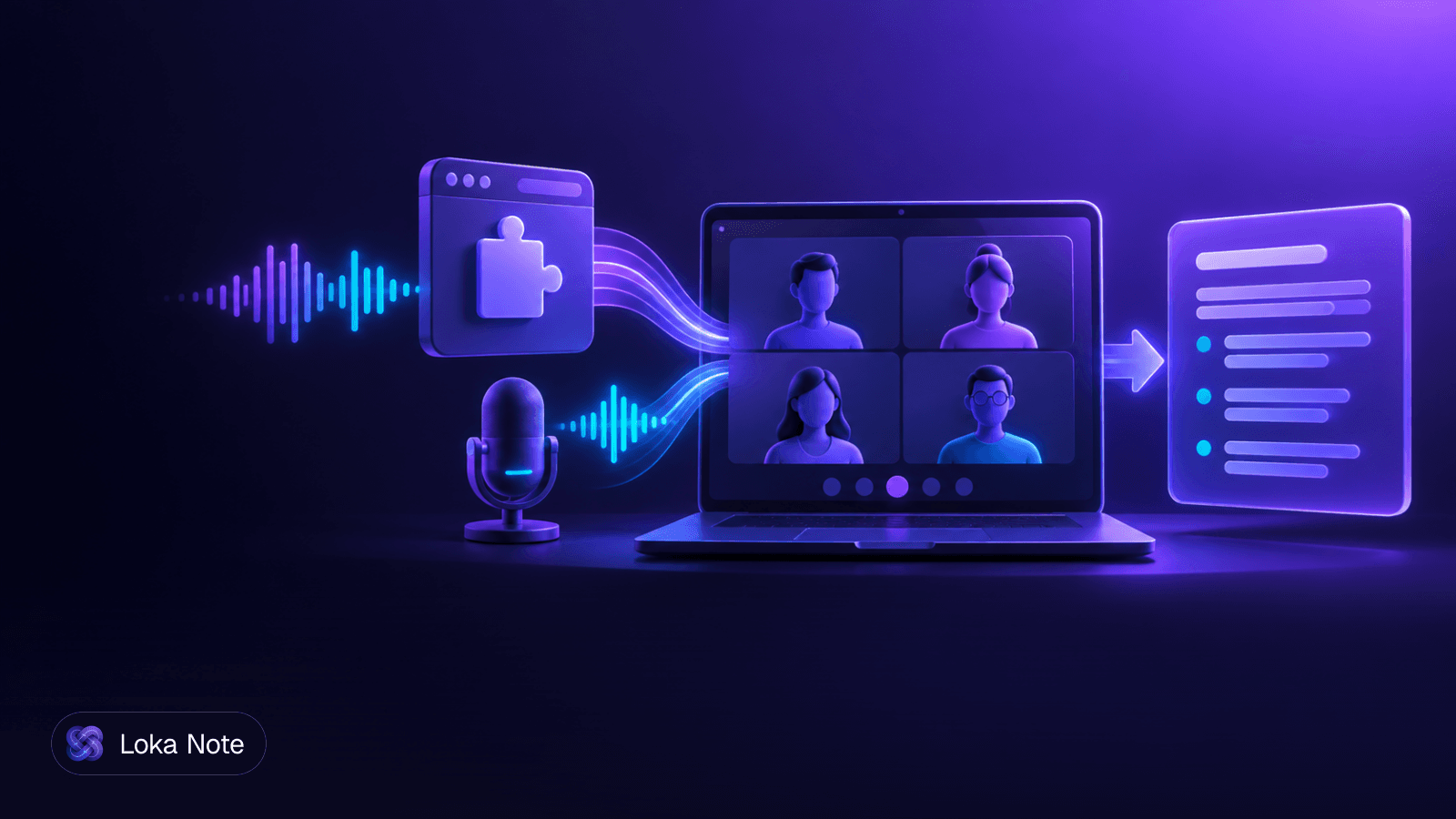
How to summarize a Zoom meeting depends on your plan and how much precision you need. You can let Zoom's AI Companion generate a summary during the call, run the recording's transcript through another tool afterward, or write it yourself from your notes. The first is fastest, the second works on any plan, and the third is the most reliable for high-stakes decisions.
This guide covers all three, plus the problems most tutorials skip: summary emails that never arrive, free plans, missing attendee lists, and accents or mixed languages that AI gets wrong.
Meeting summary vs. meeting minutes
A summary is a short recap of what happened and what happens next. Minutes are the formal record of the meeting. Decide which one you need before you pick a method, because the effort is very different.
A standard professional summary includes the meeting purpose, key topics discussed, decisions made, action items with owners and deadlines, and next steps, according to Zoom's own guidance on writing summaries. That is enough for most weekly syncs and project check-ins.
Minutes add things a summary can skip: the attendee and absentee list, the exact wording of motions or resolutions, and sometimes a record of approval. If your board, regulator or client expects minutes, treat the AI summary as a first draft only. We cover the formal version in How to Write Meeting Minutes, and there is a section on converting a summary below.
| Meeting summary | Meeting minutes | |
|---|---|---|
| Purpose | Recap for people who want the outcome | Formal record for filing |
| Length | Half a page or less | One to several pages |
| Attendance | Optional | Required |
| Decisions | Paraphrased | Stated precisely |
| Who writes it | Anyone, or AI | Designated secretary or note-taker |
How to summarize a Zoom meeting with AI Companion
Zoom's built-in route is the quickest: the host turns on Meeting Summary, and the AI produces a recap from the meeting's speech-to-text data. Zoom's support page says the feature uses that data to generate summaries when the host enables it.
CNET's walkthrough describes what you get: a summary that can include chat threads, next steps and high-level takeaways.
Enable it before the call
- Sign in to Zoom as the host and open your settings in the web portal.
- Find the Meeting Summary option and turn on "Automatically start Meeting Summary for all meetings I host." This setting is disabled by default, which is why many hosts finish a call and find nothing.
- Ask participants to sign in to their Zoom accounts before joining.
- Hold the meeting as usual.
- After the call, check your email and the Zoom web portal for the summary.
If you would rather not auto-start it for every call, the host can start it during a specific meeting. Zoom's support article has the current in-meeting controls, which change more often than a blog post can track.
If the summary email never arrives
Work through these in order:
- Was Meeting Summary actually on? The default is off, so this is the most likely cause.
- Were you signed in? Per the University of Chicago's guide, both the host and participants must be signed in to their Zoom accounts during the meeting to receive the summary by email automatically. If someone joined without signing in, assume they will not get it.
- Check the web portal. The summary may exist there even if the email did not land.
- Check spam and your plan. See the next section if you are on a free account.
Editing before you share
Only the host can directly edit the generated summary in the Zoom web portal, per the same guide. If you are a participant and spot an error, tell the host, or paste the text into your own document and correct it there.
Summarizing a Zoom meeting without AI Companion
If you are on a free plan or your admin has switched AI features off, get the words out of Zoom and summarize them elsewhere. One 2026 guide reports that Zoom AI Companion summaries are included at no extra cost on paid Workplace plans (Pro and up) but excluded on the free Basic plan as of June 2026. Check your own account, since plan terms change.
The workflow is the same whichever tool you use:
- Get a recording or transcript. A Zoom cloud or local recording works, as does any audio or video file of the call. If you can't record in Zoom, record in your browser or on a second device.
- Transcribe it. Any speech-to-text tool will do. Check that it supports the language your team really speaks.
- Clean the transcript. Fix names, product terms and numbers first. Errors here carry into every later step.
- Summarize with a structured prompt or tool. Ask for purpose, decisions, action items with owners, and open questions as separate sections. A single "summarize this" request tends to give you a vague paragraph.
- Verify against the transcript. Search the transcript for every number, date and name that appears in the summary.
A practical prompt for a general AI assistant:
Summarize this meeting transcript. List: (1) the purpose in one sentence, (2) decisions made, quoting the exact wording for any numbers or dates, (3) action items as owner, task, deadline, (4) open questions. If an owner or deadline was not stated, write "not stated" instead of guessing.
The last line matters. Without it, models tend to fill gaps with plausible but invented owners and dates.
If having a bot join the call is a problem for your clients, see Meeting Transcription Without Bot for what to check.
Write a Zoom meeting summary by hand in 7 steps
A manual summary takes more effort than AI, but it beats AI when the meeting contained a negotiation, a budget figure or anything legally sensitive. Do it while the call is fresh.
- Write the purpose first. One sentence: "Weekly sync to confirm the launch date and unblock the vendor contract."
- List attendees and absentees. An AI summary will not do this for you. Pull the participant list from Zoom's usage reports under Analytics & Reports, as one guide to Zoom summaries notes, or note it as people join.
- Capture decisions separately from discussion. A decision is something someone can act on. "We talked about pricing" is not a decision. "Starter plan stays at the current price through December" is.
- Extract action items. For each, write owner, task and deadline. If any of the three is missing, ask in the meeting, or flag it as unassigned in the summary.
- Note open questions. Things raised but not resolved. These are the items that quietly vanish if you do not write them down.
- Add next steps and the next meeting date. One or two lines.
- Send within 24 hours. A summary sent two days later gets skimmed, not acted on.
A template you can copy
Meeting: [Name]
Date / time: [Date, time, time zone]
Attendees: [Names]
Absent: [Names]

Purpose:
[One sentence]

Key topics:
- [Topic 1: one-line outcome]
- [Topic 2: one-line outcome]

Decisions:
1. [Decision, with exact figures or dates]

Action items:
| Owner | Task | Deadline |
|-------|------|----------|
|       |      |          |

Open questions:
- [Question, who will answer]

Next steps / next meeting:
[Date and what will be covered]
For more formats, including a bilingual one, see Meeting Minutes Template: 4 Formats You Can Copy.
Turn an AI Zoom summary into formal meeting minutes
An AI summary is a draft, not a record. To make it usable as minutes, add what the AI left out and verify what it paraphrased.
- Add the attendance record. Pull participants from Zoom's usage report and list present and absent members separately, since AI summaries do not automatically capture complete attendee lists or absentees.
- Convert paraphrases into precise decisions. Find each decision in the transcript or recording. Replace "the team agreed to increase the budget" with the actual amount, who proposed it, and who agreed.
- Check negations and numbers. "We will not renew" and "we will renew" are one word apart. "15,000" and "50,000" can sound alike on a poor connection or in a heavy accent. Check each against the audio.
- Use neutral, past-tense language. Minutes record what happened. Remove opinions and chatter.
- Number the action items so they can be referenced at the next meeting.
- Have the chair or host review and approve. Record the approval date at the top of the next meeting's minutes.
If you operate in Myanmar and your minutes carry legal weight, read Myanmar Meeting Minutes: Legal Rules and a Bilingual Template before you finalize.
Where AI Zoom summaries go wrong
AI summaries are good at structure and weaker on precision. Four problems come up repeatedly, and each has a workable fix.
Paraphrased decisions
The AI rewrites what was said. Usually that is fine. When it touches numbers, dates or negations, small errors change the meaning. Fix: treat every figure in a summary as unverified until you have matched it to the transcript.
Missing attendees
Summaries describe content, not attendance. Fix: use the usage report under Analytics & Reports, or keep a running list yourself.
Accents and regional English
Accents, fast speech and noisy home connections can all raise error rates, and names and local place terms tend to suffer first. This affects Southeast Asian and Nigerian English speakers as much as anyone. Fix: ask speakers to spell unusual names once, skim the transcript for proper nouns, and keep a short glossary of project and company terms.
Code-switching and multilingual calls
If your team moves between Burmese and English, Hausa and English, or any other pair within one sentence, a tool that assumes one language per meeting can garble the switch points. This is not a minor issue for teams in Myanmar, where mixed speech is the normal way of working. We explain the mechanics in Why Burmese-English Code-Switching Breaks Transcription Tools and the wider options in Multilingual Meeting Transcription: What Actually Works. The short version: test any tool on a real recording of your own meeting before you rely on it.
Where Loka Note fits
Loka Note is useful when Zoom's own summary is unavailable or does not handle your language. It records meetings in the browser with no bot joining the call, or you can upload an audio or video file of a Zoom call. It then produces a transcript and a summary with a TL;DR, decisions, action items and open questions, in the language of the meeting.
It is built Burmese-first and handles mixed Burmese-English speech. It also supports English, Thai, Vietnamese, Chinese, Yoruba and Hausa. Every account has the full feature set. You can pay as you go, starting at $1.99 for 60 minutes, or choose Unlimited at $19.99 a month. As with any AI tool, check numbers and attendance before you circulate anything formal.
Try it on your next Zoom recording: sign up for Loka Note
Frequently asked questions
How do I enable Zoom AI meeting summary?
The host has to turn it on. By default, the setting that automatically starts Meeting Summary for all meetings you host is disabled, so enable it in your Zoom settings before the call or start it from inside the meeting. Participants do not need to do anything except stay signed in.
Why did I not receive my Zoom meeting summary email?
The most common cause is that the host or a participant was not signed in to a Zoom account during the meeting. Both need to be signed in to receive the summary automatically by email. Also confirm that the host actually enabled Meeting Summary for that call.
Can you get a meeting summary on a free Zoom account?
One 2026 guide reports that Zoom AI Companion summaries are included on paid plans from Pro upward and excluded on the free Basic plan as of June 2026. On a free account, the workable route is to get a recording or transcript and summarize it with another tool, or write the summary by hand.
Can I edit a Zoom AI summary before sharing it?
Yes, but only the host can edit the generated summary in the Zoom web portal. Check numbers, names and negations against the recording before you forward it, because AI summaries paraphrase.
What is the difference between a meeting summary and meeting minutes?
A summary is a short, readable recap of purpose, topics, decisions, action items and next steps. Minutes are the formal record: who attended, who was absent, what was proposed and decided, and who approved the record. A summary is written for people who want the outcome. Minutes are written to be filed.
Sources
- 1Using Meeting Summary with AIsupport.zoom.com
- 2How to Use Zoom's AI Meeting Summary - CNETcnet.com
- 3How to write a meeting summary (with tips, template, and example) | Zoomzoom.com
- 4Zoom AI Meeting Summary: How to Start, Find and Fix It | notemeetingnotemeeting.com
- 5Zoom Meeting Summary with Zoom AI - Services Portaluchicago.service-now.com
- 6How to summarize a meeting: a 4-step workflow that holds up · Scribblscribbl.co