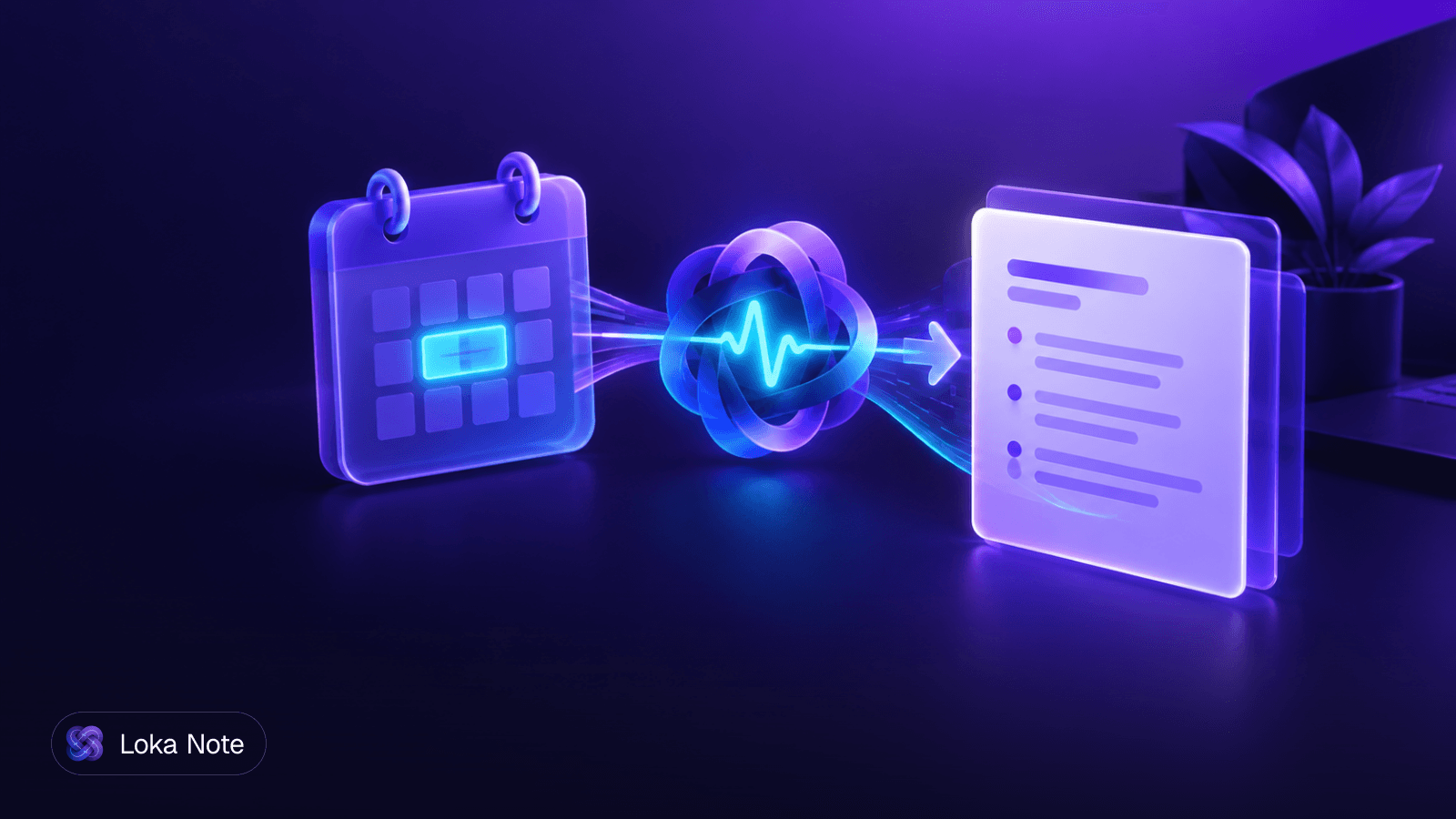
Google Calendar meeting notes automation comes in three forms: Google's own Docs template, a Zapier-style workflow that writes to the event, and an AI meeting tool that connects to your calendar directly. Only the second and third can put a summary or action items on the event. The native option attaches a prepared document and stops there.
Below we cover what each method does, where it breaks, and what to check for recurring meetings, outside guests, and mixed-language calls.
What "automatic" means for Google Calendar notes
Automation here covers two separate jobs: preparing for a meeting and recording what happened afterward. Most tools do one well and the other poorly, so decide which job hurts more on your team.
Before the meeting: create a notes document or agenda from the event title, time and attendees, and link it from the invite.
After the meeting: generate a summary, decisions and action items, then put them or a link to them back on the calendar event so people can find them later.
Teams usually feel the second job more. Notes get written in a private document, the calendar event stays empty, and three weeks later nobody can find what was decided. Our guides on how to take meeting notes that get read and capturing action items so they get done cover the writing side. This post covers the plumbing.
Method 1: Native Google Docs meeting notes
The native feature is free and takes seconds, but it prepares notes and does not write them. In Google Docs, you type @ and select Meeting notes. The document is pre-populated with the event details, and if you are the organizer it is attached to the calendar invite, according to Google's help page.
To use it:
- Open a new Google Doc.
- Type
@and choose Meeting notes. - Pick the calendar event from the list.
- Confirm the document is attached to the invite (you must be the organizer for this).
Where it stops
The same help page says the connection does not sync in both directions. Changing the document's attendees or title does not update the calendar event. Editing the event details does not update notes that already exist.
The page describes a pre-filled template and an attachment. It does not describe a summary, a transcript or action items being generated. If your team expects "notes" to appear after the call, this method will not deliver them.
It still works well for teams that take notes by hand and only want a consistent starting point. If you reschedule or rename a meeting, expect to fix the document yourself.
Method 2: Zapier and calendar triggers
A Zapier workflow can write a notes link or summary into the event description after the call, provided your note-taking tool exposes a trigger. This is the most flexible route and the one most guides skip.
Supernormal documents one version in its guide to sharing meeting notes in Google Calendar. It uses a New Meeting Notes trigger and an Update Event in Google Calendar action, which pastes the notes link or summary into the event description after the call.
The general recipe:
- Pick a note-taking tool that offers a "new notes" trigger in Zapier.
- Create a Zap with that trigger.
- Add a Google Calendar action that updates an event.
- Map the event ID or title from the notes to the calendar event. This matching is where most Zaps fail.
- Map the summary or share link into the event description field.
- Run it on one real meeting before turning it on for everything.
Matching notes to events
The hard part is not the write step. It is knowing which event a set of notes belongs to. CalendarSync describes its approach for Fireflies: it polls transcripts every 15 minutes and matches them to events by time, title and attendees, across Google Calendar and Outlook.
Two things follow from that:
- Notes will not appear on the event instantly. Polling means a delay, so do not assume a missing summary is a failure until some time has passed.
- Matching on title and time can go wrong when two meetings overlap or when a meeting starts late. Check a few events by hand.
Pre-meeting agendas through automation
Automation can also run before the call. Taskade offers a calendar automation that creates a structured Google Docs agenda pre-populated with the title, time, attendees and an AI-summarized agenda before the meeting begins. This goes a step beyond the native template, because it drafts agenda content and not just a header.
Method 3: AI meeting tools that connect to your calendar
Dedicated tools handle both sides of the job in one product, so you maintain no Zaps. The trade-off is that you adopt their way of working, including how they record.
Here is how the options in this space differ, based on what each vendor documents:
| Option | Before the meeting | After the meeting | Setup |
|---|---|---|---|
| Native Docs meeting notes | Pre-filled template attached to invite | Nothing generated | None |
| Zapier with a notes tool (Supernormal example) | Depends on tool | Notes link or summary pasted into event description | Build and test a Zap |
| Fellow | Collaborative agendas | AI summaries, decisions and action items appended to the event record | Connect to Google Calendar |
| Taskade automation | AI-summarized agenda in a Google Doc | Not described in its page | Enable the automation |
| JotMe Desktop | Loads event metadata and per-event settings | Live AI transcription | Connect calendar, configure events |
Fellow's Google Calendar integration connects to your calendar for pre-meeting collaborative agendas and, per its page, automatically appends post-meeting AI summaries, decisions and action items to the event record. That is the closest match to "everything lives on the event" without building anything yourself.
JotMe Desktop takes a different angle. It connects to Google Calendar to load scheduled meeting metadata, then applies pre-configured language, microphone and audio settings for each event before live AI transcription starts.
Bots versus bot-free recording
Before connecting any tool, ask how it captures audio. Some join the call as a visible participant. Others record from your own browser or device. That choice affects how guests feel, what your clients agree to, and whether the tool works in meetings you do not control. We cover this in Transcribe Google Meet Without a Bot and Are AI Note Takers Safe?.
Agendas versus action items
Handle these as two separate flows, because they fail in different ways. Agendas need to exist before anyone joins. Action items need an owner and a place people will actually look.
Agendas
Put the agenda where attendees already look: the event description or an attached document. Create it when the event is created, not the morning of the call. The native template and the Taskade automation both work at this stage.
Action items
Action items are more useful as a list than as a paragraph on a calendar event. Put a link to the full notes on the event, and keep the owner and due date inside the notes themselves. If your tool only writes plain text to the description, keep it short: three or four lines plus a link beats a pasted wall of text.
Permissions, guests and recurring series
Most failures come from permissions, not from the automation. The sources we reviewed do not document these cases in detail, so treat the following as a checklist to test, not as guaranteed behavior.
Who can open the link
If a notes link is pasted into an event, everyone invited sees the link, but not everyone can open it. Guests outside your Google Workspace domain are the usual problem. Before you roll out a workflow:
- Send a test invite to a personal email address outside your domain.
- Open the notes link from that account.
- If access is denied, decide whether to share the document with guests, send them a PDF or email copy, or leave them off the automation.
Also decide whether guests should see internal notes at all. A summary written for your team may include remarks you do not want a client to read.
Organizer rights
The native feature attaches the document to the invite only if you are the organizer, per Google's help page. If someone else owns the recurring series, your attachment will not land. Agree on who organizes recurring meetings, and have that person set up the notes.
Recurring events
Test a recurring series with at least two occurrences before you trust it. Check three things:
- Does each occurrence get its own notes, or do all of them point at one document?
- If one occurrence is moved or renamed, does the match still work? Remember that native notes do not follow changes made to the event after the document exists.
- If you use polling and title matching, do two meetings with identical titles get confused?
Mixed-language meetings
If your team switches languages mid-call, calendar metadata can help, but only if the tool checks what is actually spoken. Most guides assume one English-language call. Teams in Myanmar, Southeast Asia and Nigeria often move between English and another language within a single meeting.
Calendar-driven setup helps here. JotMe's approach of applying a per-event language setting before the call starts is one example. It saves someone from picking a language at the last minute. The risk is the opposite one: a preset language that does not match what people end up speaking.
When you evaluate a tool for mixed-language teams, test with a real recording and check:
- Does it detect the language, or does it trust your setting?
- What happens when two languages alternate within a sentence?
- Is the summary written in the language of the meeting or forced into English?
We have written more on this in Multilingual Meeting Transcription: What Actually Works and Why Burmese-English Code-Switching Breaks Transcription Tools.
Choosing a workflow
Pick based on what you actually lose today, and start with the smallest setup that fixes it.
- You only need a consistent starting point. Use native Docs meeting notes. It is free, and you accept manual updates after the call.
- You already use a notes tool you like. Check whether it has a Zapier trigger, then build the write-back to the event description. Budget time to test matching and polling delays.
- You want agendas, summaries and action items on the event with the least upkeep. Look at a dedicated integration such as Fellow, and compare how it records and what it costs.
- Your meetings mix languages. Test language handling first. A perfect calendar sync is not useful if the transcript is wrong.
Whichever you choose, run one week of real meetings through it, including a recurring one and one with an outside guest, before you roll it out to the team.
Where Loka Note fits
Loka Note records meetings in the browser with no bot joining the call, or takes uploaded audio and video, and produces a transcript, summary, decisions and action items. It has a Google Meet and Google Calendar integration, including pre-meeting briefs. We have not documented writing summaries back into event descriptions, so if that exact step matters to you, test it against your own workflow first.
It is built Burmese-first, handles Burmese-English code-switching, and also supports English, Thai, Vietnamese, Chinese, Yoruba and Hausa. The language you pick is checked against the audio, so a meeting set up under the wrong language is still transcribed in the one actually spoken. There are no plan tiers: minute top-ups start at $1.99, and an optional Unlimited plan is $19.99 a month.
Try it on your next calendar event: create a Loka Note account
Frequently asked questions
How do I automatically attach meeting notes to a Google Calendar event?
In Google Docs, type @ and choose Meeting notes, and the document is pre-filled with event details and attached to the invite if you are the organizer. This attaches a template, not a finished summary. For summaries, you need a Zapier workflow or an AI meeting tool that writes back to the event.
Can Google Calendar automatically generate AI meeting notes?
Google Calendar itself does not write the notes. The native Docs feature prepares a notes document from the event. To get AI summaries and action items on the event, connect a dedicated tool such as Fellow or Supernormal, or build a workflow around one.
How do I use Zapier to add post-meeting summaries to Google Calendar descriptions?
Supernormal documents one pattern: a 'New Meeting Notes' trigger followed by an 'Update Event in Google Calendar' action that pastes a notes link or summary into the event description. Other tools with a Zapier trigger can follow the same shape. Test it on one event before you roll it out.
Why don't Google Docs meeting notes update when the calendar event changes?
Google's help page states the sync does not run both ways. Changing the document's attendees or title does not update the event, and editing the event does not update notes that already exist. If a meeting is rescheduled or renamed, fix the notes document by hand.
Can an AI meeting note taker join calls automatically from my Google Calendar?
Some tools read your calendar to know which meetings are coming and prepare for them. Whether a tool joins as a visible bot or records without one depends on the product. Check this before you connect a tool, especially for calls with clients or external guests.
Sources
- 1Add meeting notes to Google Calendar eventssupport.google.com
- 2Automatically share meeting notes in Google calendarsupernormal.com
- 3Calendar Meeting Notes Generator Automation with AItaskade.com
- 4fellow.aifellow.ai
- 5Meeting Notes Integration for Google Calendar and Outlook (with Fireflies) | CalendarSync Blogcalendarsync.app
- 6How to Connect Google Calendar for Bot-Free Remote ...jotme.io